VERTEXNOVA

INTEGRATIONS

Twitch and Discord, working as one.

VertexNova connects the two places your community lives. You decide what happens in each, from one dashboard.

Twitch
VERTEXNOVA
Discord

Supported integrations

Twitch

The bot lives in your Twitch chat. VertexNova reads what happens there and answers the way you set it up.

What it enables

  • Chat commands and timers
  • Messages when you go live, change game or title, and when someone raids, subscribes, gifts subs or cheers
  • Chat filters, loyalty points, chat games, giveaways, polls and quotes
  • Analytics from your saved chat and recorded streams
  • Signing in to the dashboard with your Twitch account
Discord

The bot joins a Discord server that you link to your channel, and posts there for you. It only posts: it reads nothing from your server.

What it enables

  • Linking your own server with a one-time code
  • Announcements of giveaways, poll results, raids, subscriptions, gifts and bits
  • Posts at a fixed time, including the top of a leaderboard
  • A log of every post the bot made on its own, with the error when one did not get through
  • Safe messages: nobody is ever pinged

Twitch and Discord are the only integrations at the moment. Other platforms are not supported.

How they work together

A connected workflow, with you in charge of every step.

  1. Something happens on Twitch

    A giveaway starts, a poll ends, someone raids or subscribes.

  2. VertexNova decides

    Only what you switched on, with the message you wrote, and only in the Discord server you linked.

  3. It is posted on Discord

    In the channel you chose. If a post fails, you see why in the activity log.

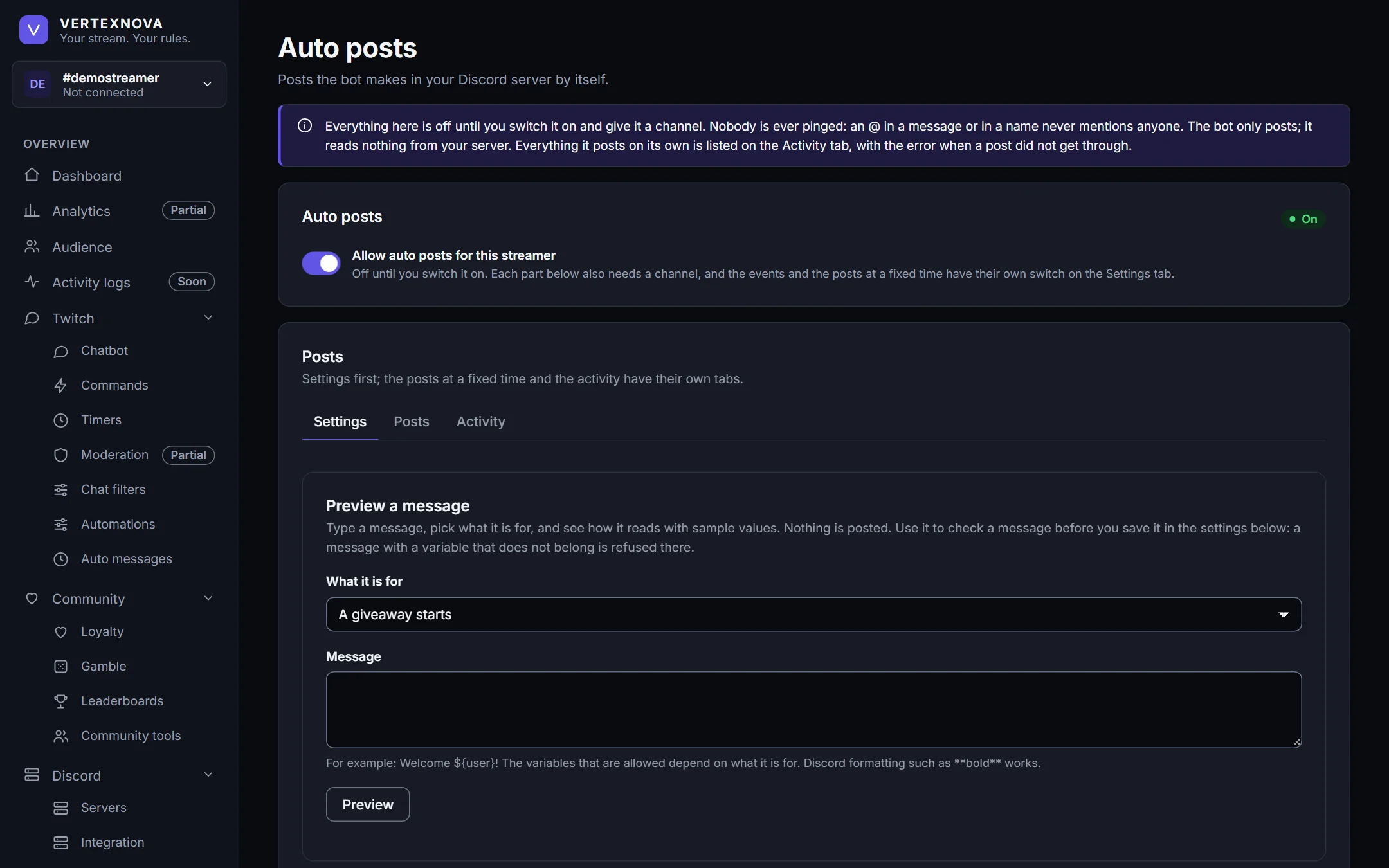
The Auto posts page of the dashboard, with the switch and the settings for what the bot posts in a Discord server.
Auto posts, shown with demo data.

Link your Discord server in four steps

  1. In the dashboard, open Discord → Servers and add the bot to your server with the link shown there.
  2. Make a one-time code.
  3. In your Discord server, somebody who manages the server types /koppel-server and fills in the code.
  4. Pick the channels in Auto posts and switch on what you want. Unlinking is one click.

Help with connecting Discord

Connect your community.

Open the dashboard to connect Twitch and Discord. Access may currently be restricted to invited channels.

Open VertexNova